
Scenario Configurations
Define custom fields on scenarios and tests using configuration templates.
What configurations are
Configuration templates let you add custom fields to your scenarios and tests. Think of them as structured metadata - extra fields that appear alongside the standard name, instruction, and assertions.
Configurations have two levels of fields:
- Scenario fields - appear on the scenario itself. Useful for information that applies to all tests in the scenario.
- Test fields - appear on each test within the scenario. Useful for per-test metadata.
Creating a configuration
- Click your workspace name in the top left corner, choose Settings, then open Configuration.
- Click Create.
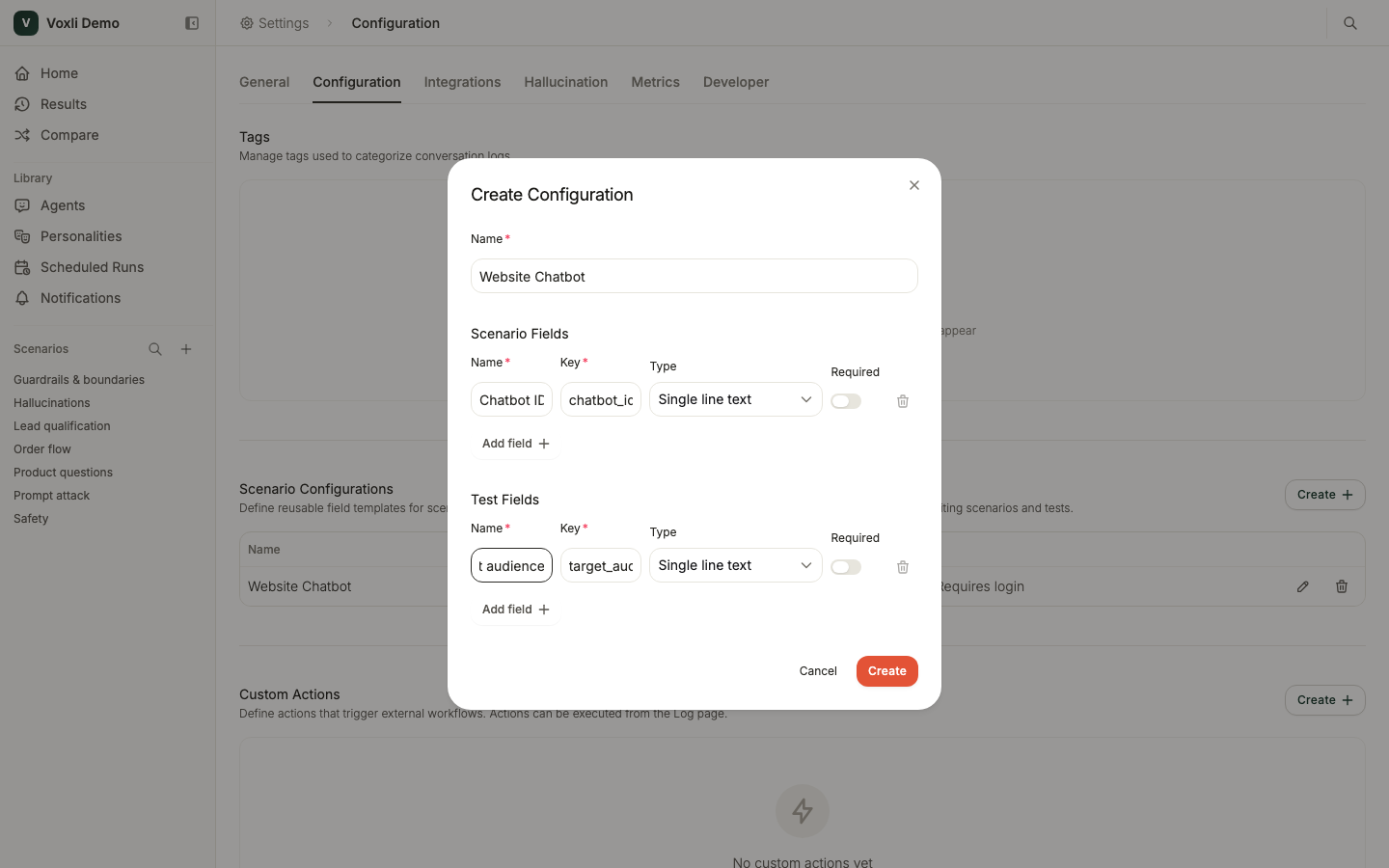
- In the Create Configuration dialog, give the configuration a Name (for example, “Website Chatbot”).
- Use Add field under Scenario Fields and Test Fields to add fields. Each field has:
- Name - the label users see (e.g., “Chatbot ID” or “Target audience”).
- Key - the identifier your integration reads via the API. Voxli fills it in from the name, and you can adjust it before saving.
- Type - Single line text, Long text, or Checkbox.
- Required - turn this on to make the field mandatory.
- Click Create.
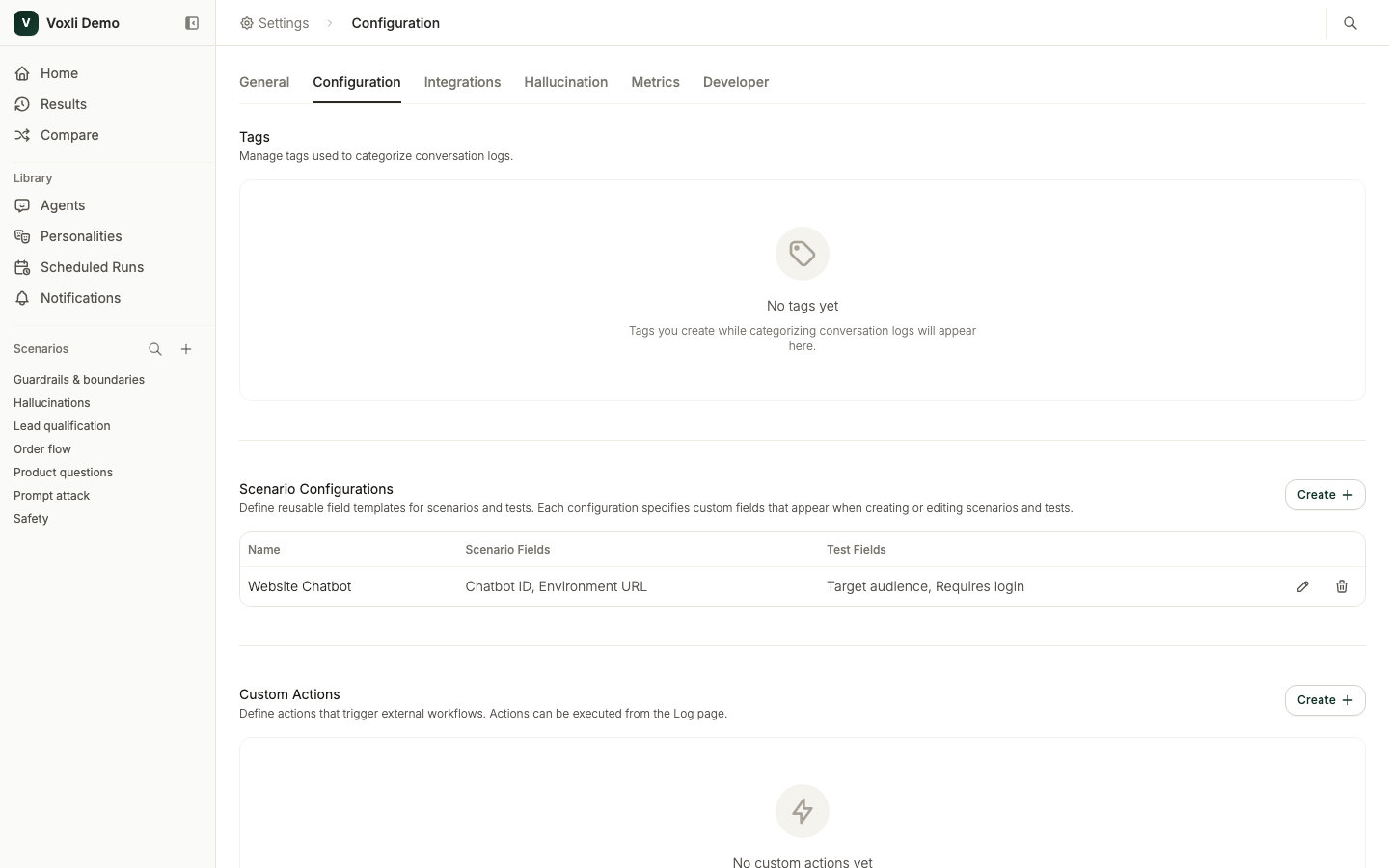
The configuration appears in the table with a summary of its scenario and test fields. Use the row actions to edit or delete it. Deleting a configuration keeps the values your scenarios already store, but they are no longer linked to the configuration.
Linking a configuration to a scenario
You can pick a configuration in the Configuration dropdown when creating a scenario. To link one later:
- On the scenario detail page, open the three-dot menu and click Edit.
- In the edit dialog, select your configuration from the Configuration dropdown.
- Save the scenario.
After linking, the custom fields appear in the scenario and test edit forms. Fill in the values as needed - they are stored with the scenario and its tests. Required fields must be filled in before you can save.
Field types
| Type | Description |
|---|---|
| Single line text | A short text input for brief values like IDs, names, or labels. |
| Long text | A multi-line text area for longer content like descriptions or instructions. |
| Checkbox | A yes/no toggle for flags like “Requires login”. |
Use cases
Field values are accessible via the API, making configurations primarily useful for passing structured data to external systems and integrations during test execution. For example, you might store a chatbot ID, environment URL, or authentication token that your integration needs when starting a run.
For API details, see Scenario Configurations in the developer docs.