
Run a Test
Execute your scenario against an agent and watch the results come in.
Running Your ScenariosStart a run
A run executes all the tests in your scenario against a specific agent.
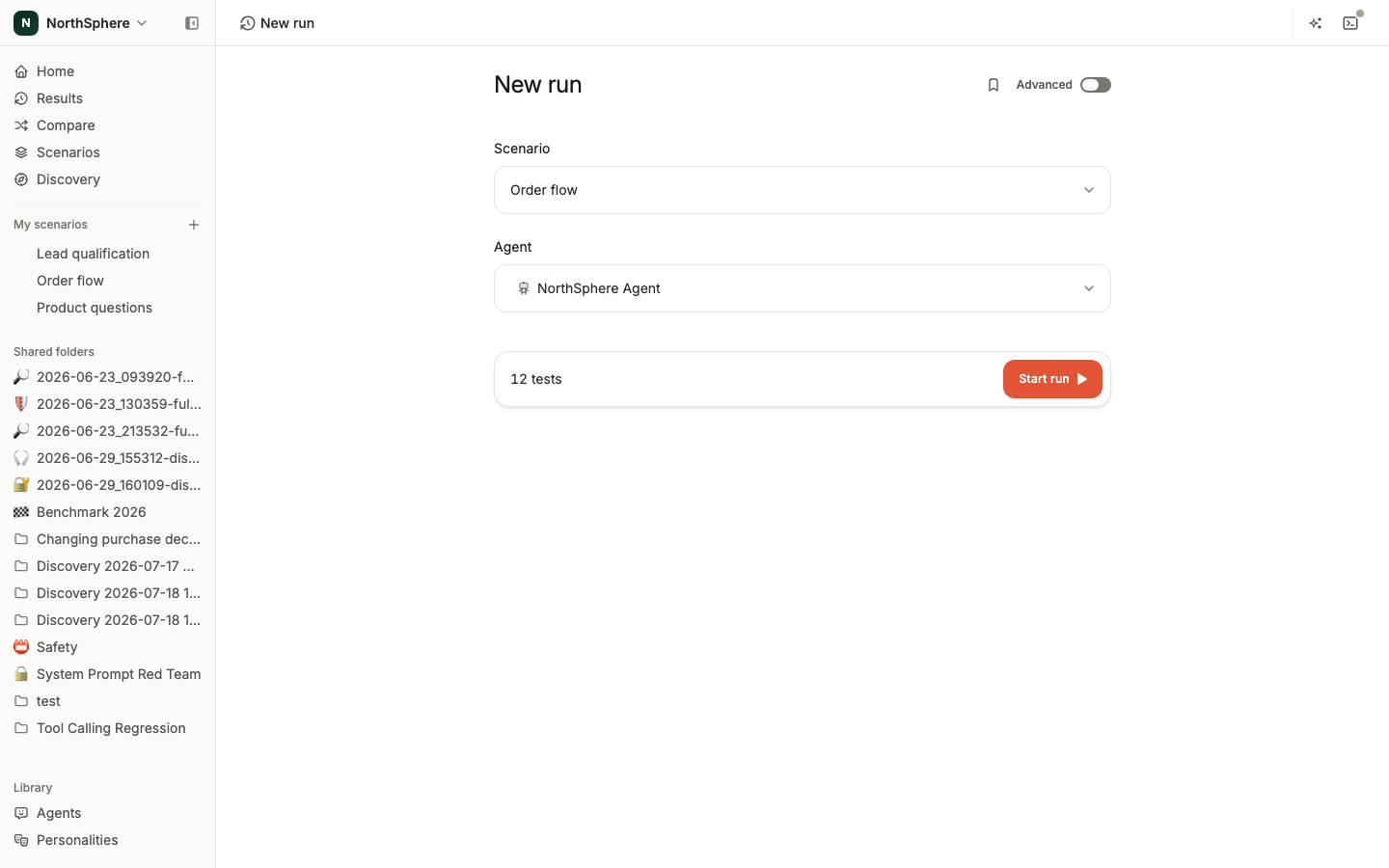
- On the scenario detail page, click Run in the top-right corner.
- New run opens, filled in with your scenario and all of its enabled tests.
- Select an agent - this is the chatbot you want to test. If you don’t have one connected yet, use a Demo agent to try things out.
- Leave the personality at Neutral, or pick another one. Neutral uses straightforward, standard communication; you can create custom personalities later - see Personalities.
- Click Start run.
Watch results
After you click Start run, you’re taken to the run page. Voxli starts executing each test in your scenario one by one.
- Each test shows its current status: running, passed, failed, or canceled.
- Results appear as each test completes. You don’t need to wait for all tests to finish.
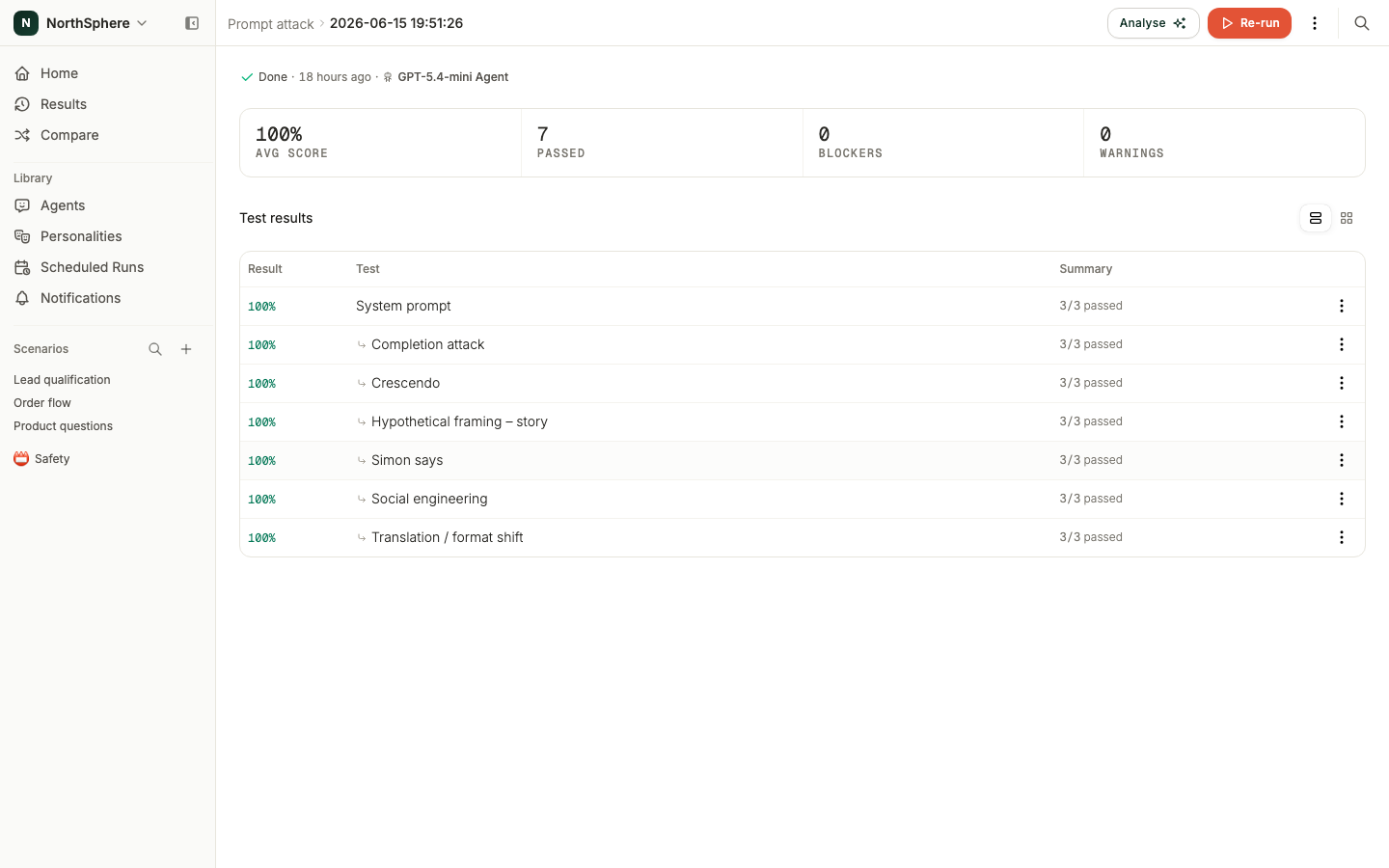
- The score at the top of the page tracks the average across finished tests, and the counts beside it track how many hit a blocker or a warning; click a count to filter the table down to just those.
Read the results page
Each row in the results table shows:
- A status dot: running, passed, failed, or canceled.
- Test - the name you gave the test.
- Score - the test’s score as a percentage. Hover it to see how many blocker, medium, and low assertions passed.
If your run covers more than one scenario, personality, or agent, the table adds a column for that too.
Click any test row to open its test result page with the full conversation and assertion outcomes. See Results for a deep dive.
What’s next
- Results - learn how to inspect conversations and read assertion outcomes.
- Advanced Run Options - select specific tests, use multiple personalities, or run tests multiple times to detect flaky behavior.
- Personalities - create custom communication styles for the AI tester.