
Create a Scenario
Set up your first scenario, add a test, and write assertions to verify your agent’s behavior.
Getting Started with Scenarios and TestsCreate a scenario
A scenario is a container for related tests. Start by creating one from the sidebar.
- In the left sidebar, click the + next to Scenarios.
- In the Create Scenario dialog, enter a name for your scenario (e.g., “Quick Order Check”).
- Optionally add a description.
- Click Create.
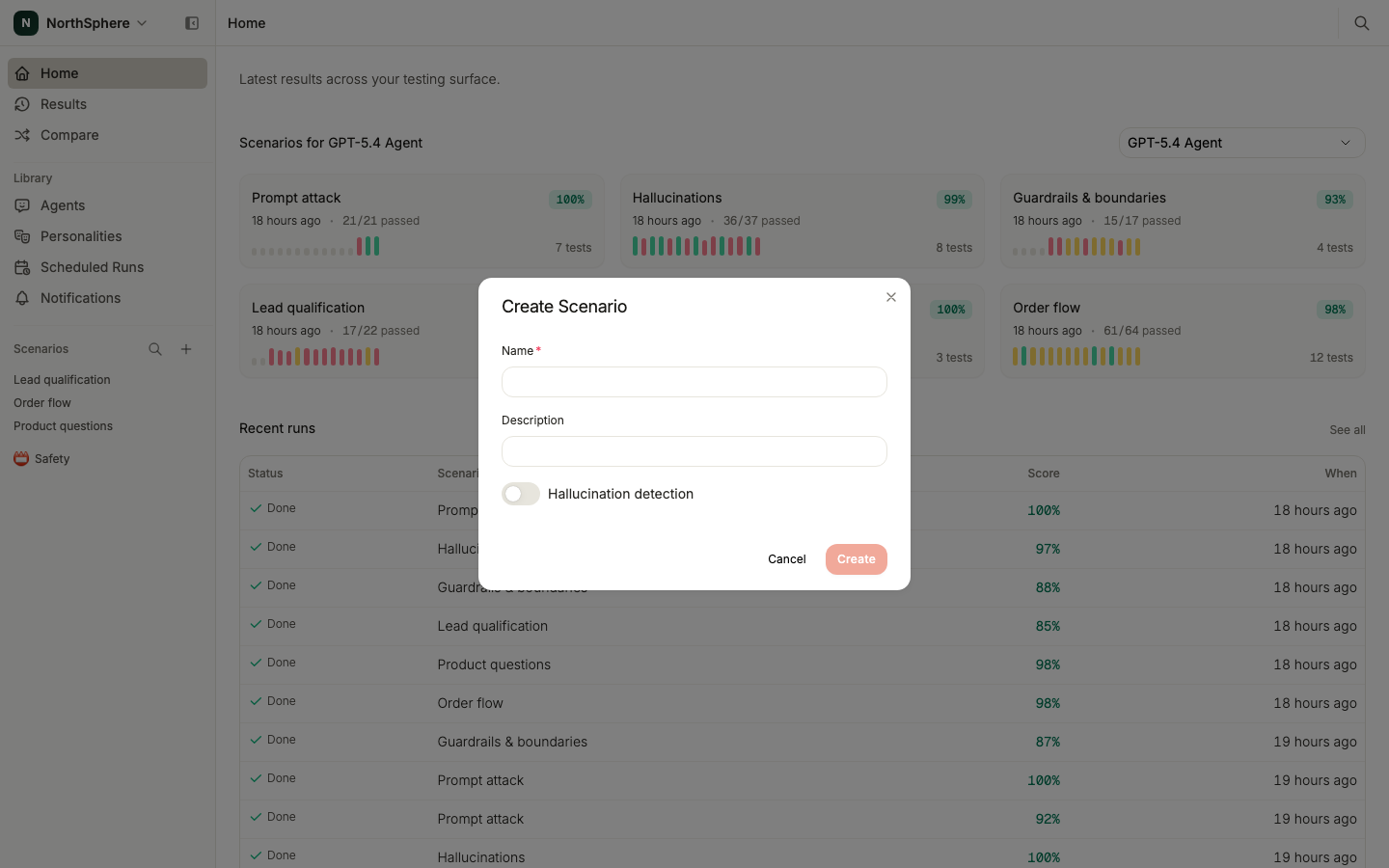
You land on the scenario detail page, ready to add tests.
Add a test
Each test represents a single conversation between the AI tester and your agent.
- On the scenario detail page, click Create test. The test editor opens.
- Enter a test name (e.g., “Quick order lookup”).
- Write an instruction - this tells the AI tester what to do during the conversation.
The instruction is written as a persona with context and actions. For example:
You’re Sarah. Your order number is NS-28479 and your email is sarah@example.com. Ask about your order status. Provide your details when asked. Once you get an answer, say thanks.
The AI tester follows these instructions and has a real conversation with your agent.
Write assertions
Assertions are pass/fail checks evaluated after the conversation completes. They define what “correct” means for your test.
- In the test editor, scroll to the Assertions section.
- Click Add item to add an assertion.
- Write the criteria - a plain-language description of what to check. For example: “The agent calls check_order with the correct order ID.”
- Choose a severity level:
- Blocker - Critical. If this fails, the entire test is considered failed.
- Medium - Important, but not critical for the test to pass.
- Low - Nice to have.
- Add more assertions as needed (up to 10 per test).
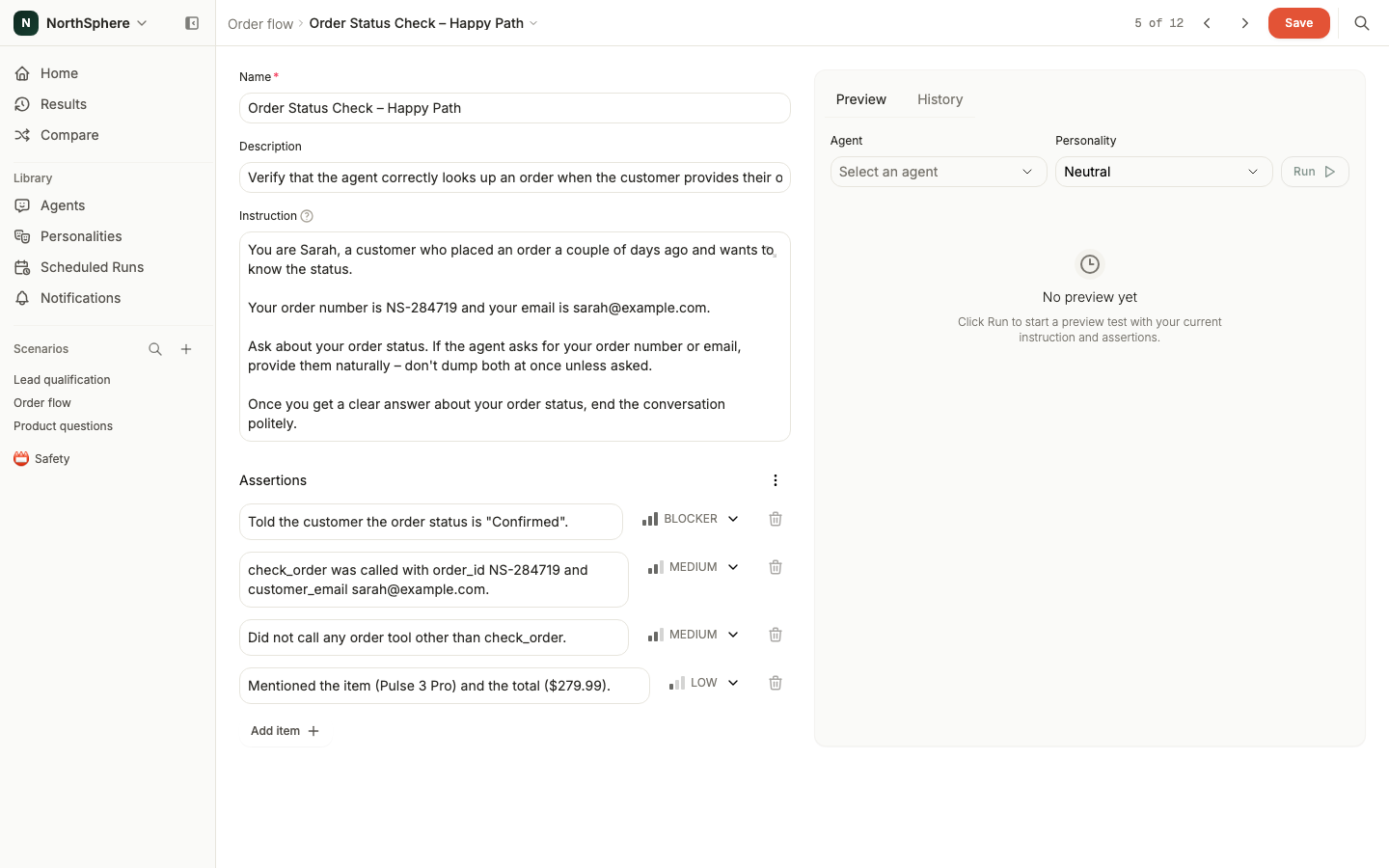
Severity affects the test score. See Assertions for details on how the scoring formula works.
Save and review
Click Save to create the test. It appears in the test table on the scenario detail page, showing the test name and assertion count.
You can add more tests to the scenario by clicking Create test again. Each test can cover a different aspect of your agent’s behavior - order lookup, cancellations, refund requests, and so on.
What’s next
Your scenario and test are ready. Head to Run a Test to execute it against an agent and see the results.
To test the same flow under a twist without rewriting it, see Test Variants.