
Folders
Group related scenarios into folders so they are easy to find in the sidebar.
What folders are
A folder is a named group of scenarios. As your workspace grows, folders keep related scenarios together - one folder for onboarding flows, another for billing, another for a specific customer. Each folder can have an optional emoji shown next to its name.
A scenario can belong to more than one folder. Putting a scenario in a folder does not move it or remove it from anywhere else - the same scenario can appear under several folders at once.
Folders appear in the left sidebar in two sections. Click a folder to expand it and see the scenarios inside. An empty folder shows No scenarios.
My scenarios and Shared folders
The sidebar keeps your own work apart from the team’s:
- My scenarios lists the scenarios you created that are not in any folder yet, plus your personal folders. Only you see this section’s contents in your menu. The + button here creates a new scenario.
- Shared folders lists the folders shared with the workspace. Everyone sees the same shared folders and the scenarios in them. Loose scenarios never live here; a scenario reaches the team by being in a shared folder.
A new folder starts in My scenarios. A scenario is listed wherever its folders are: add it to a shared folder and it appears under Shared folders for everyone. Share a folder and every scenario in it comes along.
Anyone with a link can open a scenario or folder, whichever section it is in. The sections only decide what shows up in each person’s menu.
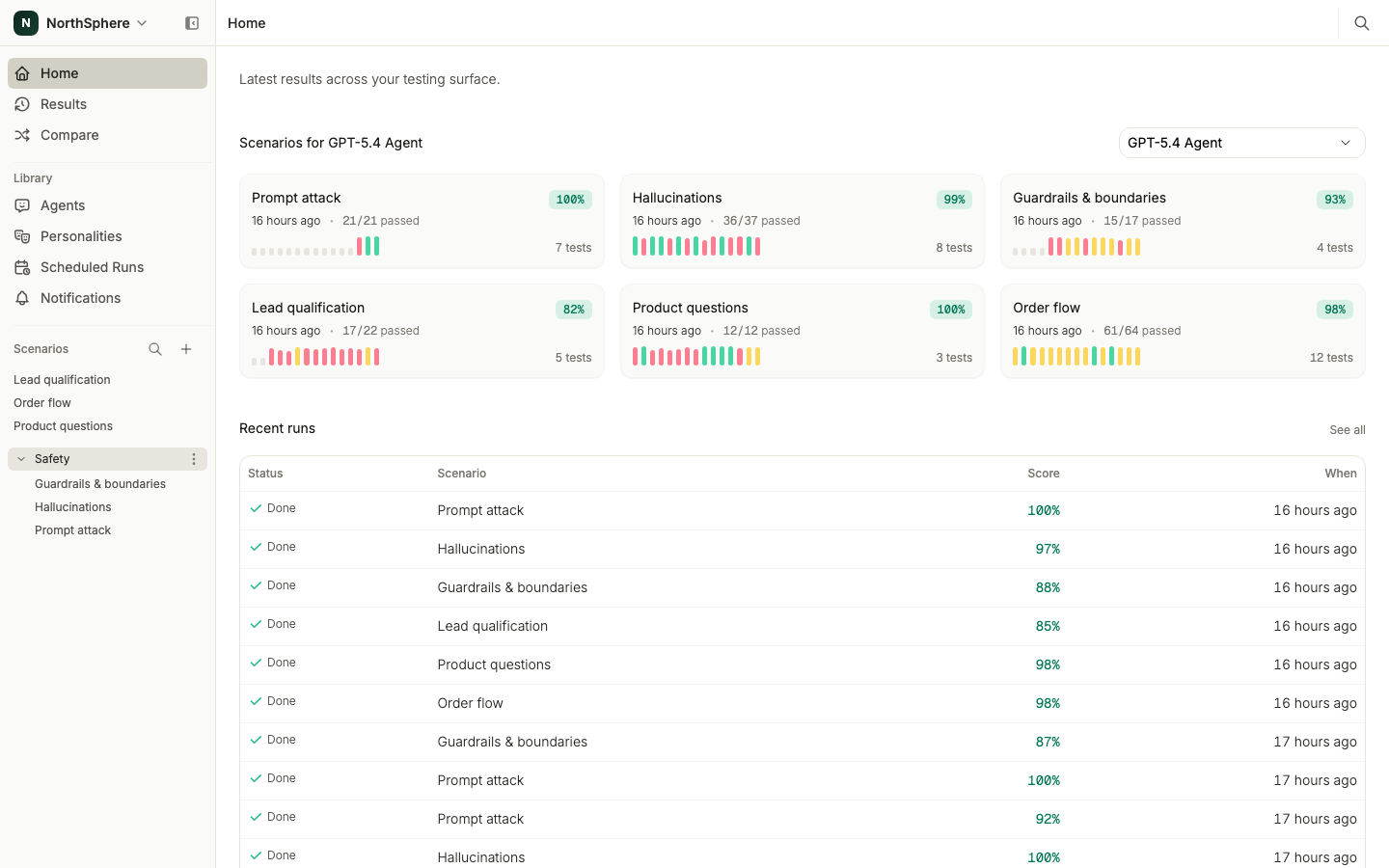
Adding a scenario to folders
You assign folders from the scenario itself.
- Open a scenario from the Scenarios page.
- In the page actions, click Organize & share. Hovering the button lists the folders the scenario is already in; while it is in none, it is listed only for its creator.
- The Organize & share dialog opens with a checklist of your folders, grouped into My folders and Shared folders and in the same order as the sidebar, so a folder sits where the menu puts it. The folders the scenario is already in are ticked. Tick or untick folders.
- Click Save.
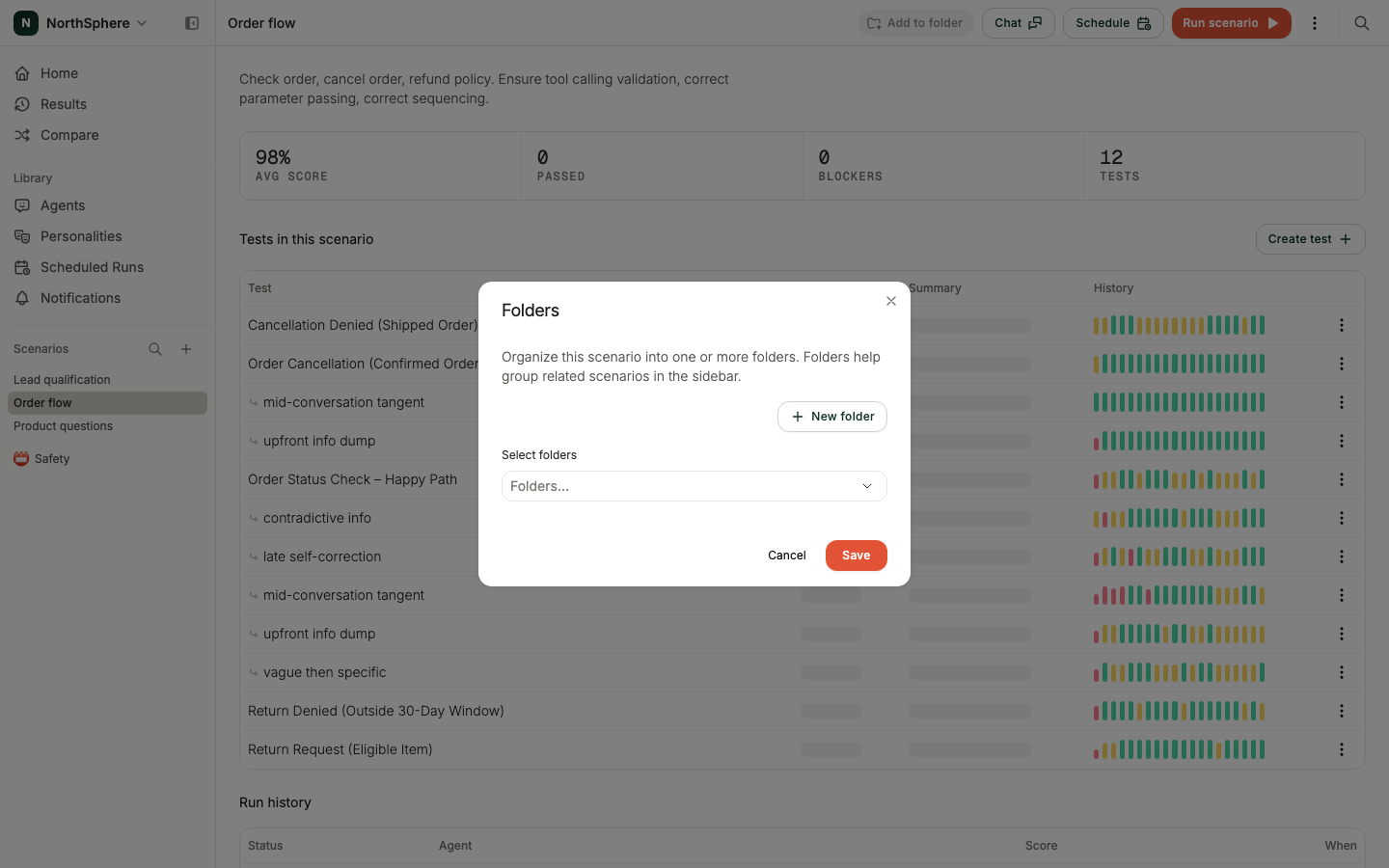
The button keeps reading Organize & share; hover it to see which folders the scenario is in.
Creating a folder
You can create a folder while assigning one.
- In the Organize & share dialog, click New folder at the bottom of the list. A New folder panel opens below the list.
- Enter the Folder name, and optionally click the emoji button beside it to pick an emoji for the folder.
- Leave Shared folder off to keep the folder under My scenarios, or switch it on to start the folder under Shared folders.
- Click Save (or press Enter). Voxli creates the folder and files the scenario into it, together with any other folders you ticked. The ✕ in the panel, or Escape, discards the new folder without closing the dialog.
To change the emoji later, or to move the folder between sections, open its three-dot menu in the sidebar and choose Edit. If you have no folders yet, the dialog opens straight on the new-folder row.
Sharing a folder with the team
Folders you create start under My scenarios. When a folder is ready for the team, open its three-dot menu in the sidebar, choose Edit, and switch Shared folder on. The folder and every scenario in it appear under Shared folders for everyone in the workspace. Switching it off takes the folder back to My scenarios.
A folder can also start shared: flip the same Shared folder switch when you create it. Only the person who created a folder can move it between the two sections. Everyone else sees the switch, and where the folder sits, but cannot change it.
A scenario leaves Shared folders when it is no longer in any shared folder. Only the scenario’s creator can do that; if you want to reorganize someone else’s scenario, move it to another shared folder instead.
Editing and archiving a folder
Each folder in the sidebar has a three-dot menu.
- Edit - open the Edit folder dialog to rename the folder, change its emoji, or move it between My scenarios and Shared folders with the Shared folder switch. The switch is editable only for the folder’s creator, and moving the folder takes its scenarios along.
- Archive - remove the folder from the sidebar. Voxli asks you to confirm with Are you sure you want to archive this folder? Archiving a folder does not delete or archive the scenarios inside it - they simply stop appearing under that folder. Scenarios in other folders are unaffected.
What’s next
- Scenarios - the dashboard where you open and manage scenarios.
- Create a Scenario - add a new scenario to organize.